
How to start and use a Meta Quest 3 (beginner tutorial)
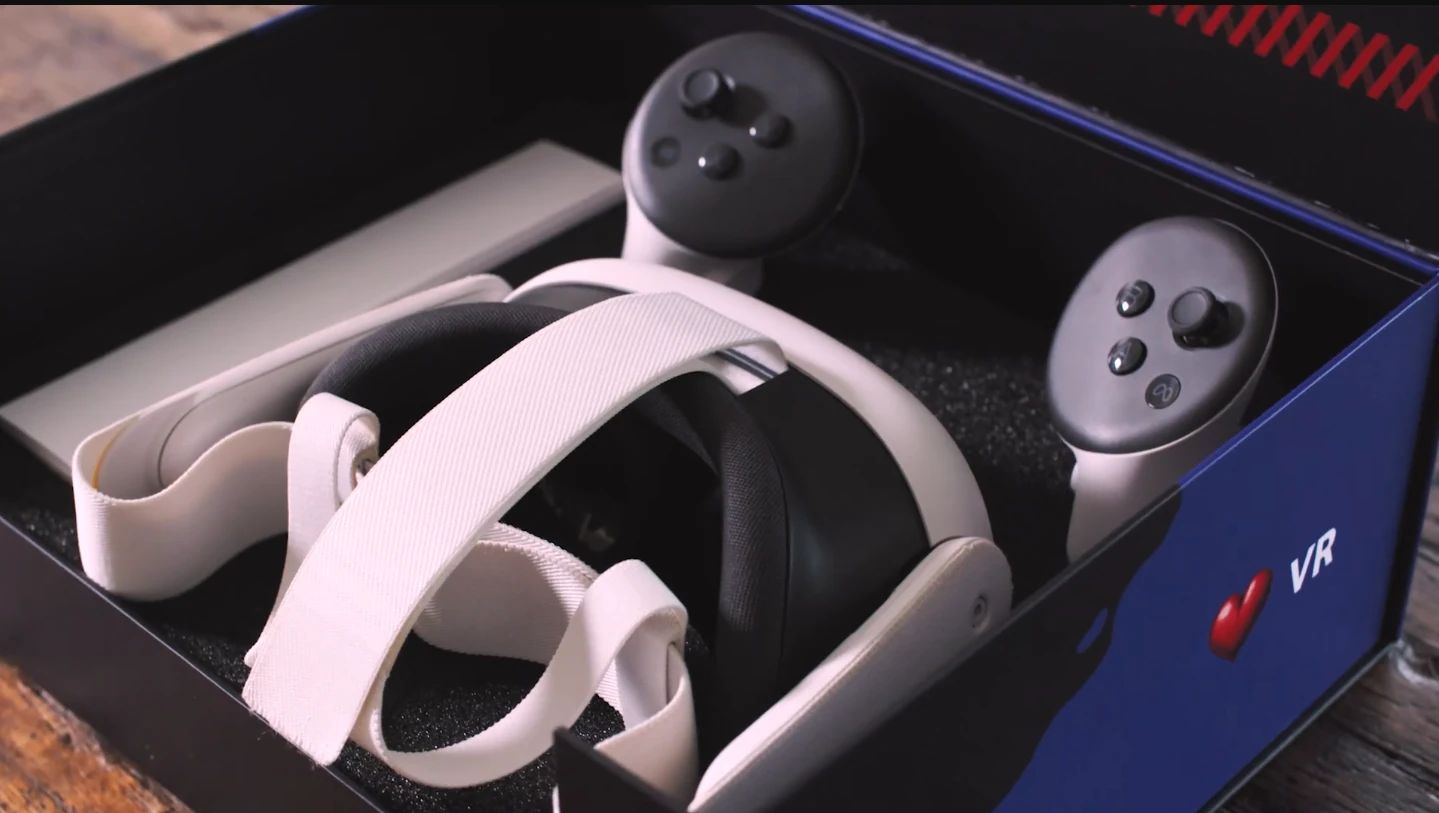
This guide is for anyone operating a Meta Quest 3 on their own for the first time who wants to start an app that was not installed from the app store. In eight steps, you turn on the VR headset, put it on, open the app and set up the play area.
- Take the VR headset out of the box. You don’t need the controllers, so they can stay in the box.
- Turn on the headset by pressing and holding the button on the side for about 5 seconds. You can’t see the startup process from the outside. If you want to be sure the headset is booting, you can look into the lenses. After about 30 seconds, the headset has started and you’ll hear a sound.
- Put on the VR headset. First place it against your face, then pull the strap over your head. If you wear glasses, you can keep them on. Most everyday or reading glasses fit inside the headset.
- Slide the two buckles at the back of your head apart to tighten the strap. The headset should press lightly against your face. If necessary, move the headset slightly up or down on your face until the image is sharp and clear and the headset fits well. Adjust the top strap so the headset doesn’t press on your nose.
- The headset shows you a menu bar floating in the air. Raise your hand and point at the menu bar. You can move a small dot across it, like a mouse pointer. To click, use your index finger and thumb, just like a computer mouse: aim at a button, then quickly pinch your index finger and thumb together and release.
- The menu bar shows the time on the left and an icon with nine dots on the right. That is the app library. Open it by tapping the icon with your index finger. Find the app you want to start. It is usually in the “For work” or “Unknown sources” category. Open the app by tapping it with your index finger.
- You’ll now be prompted to set up the play area. Stand in the room so that you have some space around you. Follow the instructions shown in the headset. There are several options. Whichever one you choose, make sure the markings on the floor are clear of obstacles. This defines the area of your room where you can safely use the headset.
- Once you confirm this area, the app starts. If you see blue crosses around you, you are touching the boundary you set.